
See how the whole store stays connected.
This simulated aquarium shop uses one shared set of demo data. Ring up a sale, watch the customer display react, see the Owner/Manager dashboard change, and then open the Tank 1 Smart Kiosk to see its live inventory count update automatically.
No Square. No real database. No real payment.
Request a live ANND POS demo.
The interactive store gives you the idea. A live demo lets us walk you through ANND POS with you, answer questions, and show how the platform could fit your business.
 POS
POS
Business Dashboard
Welcome back, Demo Manager. Here's what's happening with the business.
Watch the customer journey without standing at the register.
This is the business owner's command center. Sales completed by employees flow into today's totals, transaction history and recent activity, while inventory alerts and connected-device status show what is happening elsewhere in the store. In this demo, receive the purchase order, browse the Tank 1 kiosk, then complete a sale and come back here—the owner can see the effects of that activity from one place.
Recent Activity
Store Systems
Register
Ring up products, attach rewards customers, and complete sales.
The left side is the employee's register. The right side is what the customer sees.
The employee works from the left side to scan or select products, change quantities and build the sale. The right side represents a customer-facing tablet or payment display, giving the customer a clear, independent view of their order, tax and final total before payment. For this public demo, payment is safely simulated—nothing is sent to Square and no real charge occurs. Complete a sale here and the same event will reduce inventory, update the Smart Kiosk's available quantity, appear in Reports and become visible to the owner on the Dashboard.
Add Product
Current Sale
Welcome
Your order will appear here.
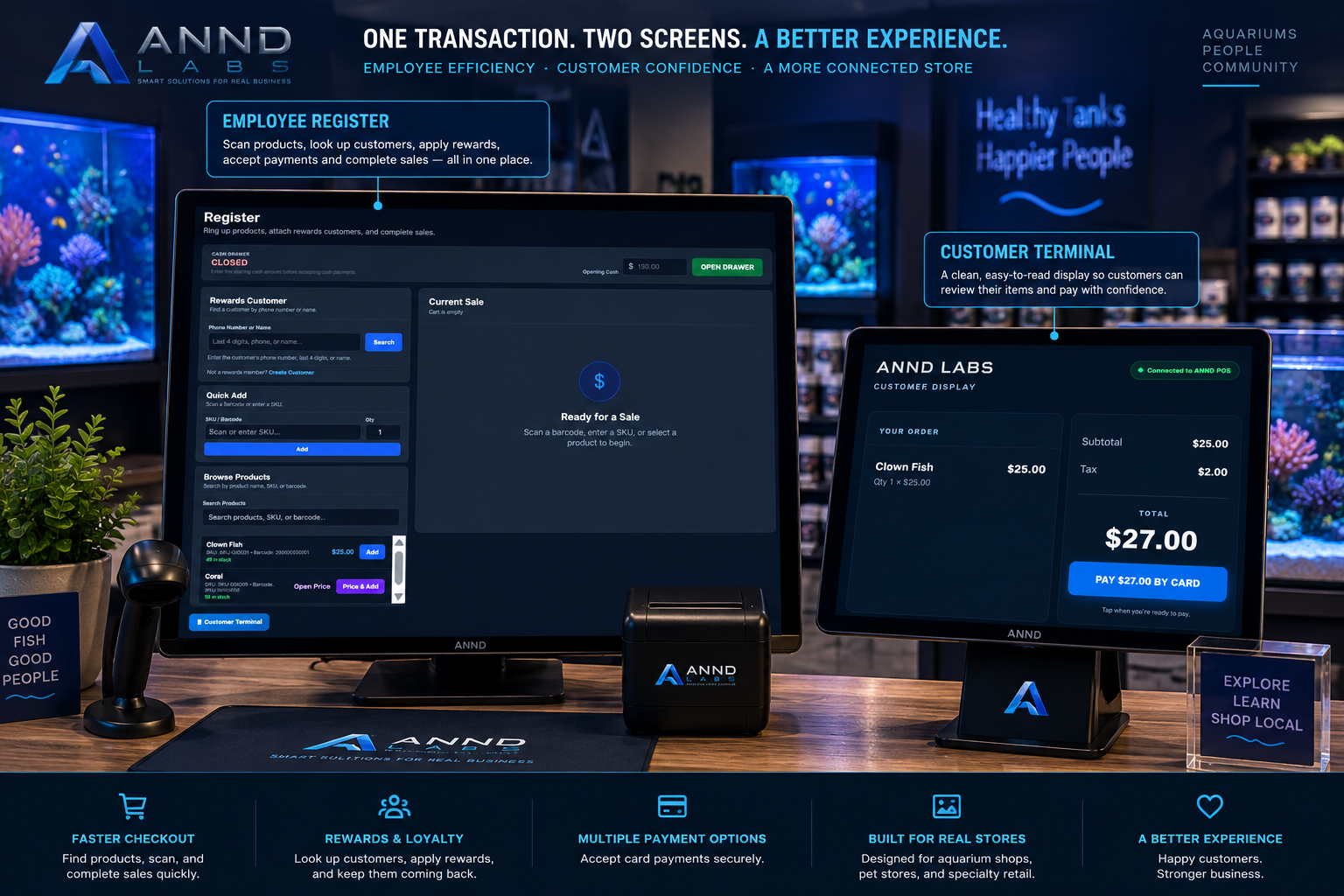
What this looks like at the counter.
The employee operates the full ANND POS Register from behind the counter, while the customer gets a dedicated terminal facing them on the opposite side. Both stay synchronized to the same transaction in real time—the employee keeps the controls they need, while the customer gets a clean view of their order, total and payment experience.
Inventory
Track stock across tanks, aisles, displays and storage locations.
One inventory count feeds purchasing, checkout and the customer kiosk.
Inventory is the shared source of truth for products and locations. Receiving a shipment adds stock here; completing a sale removes it. Because the Tank 1 Smart Kiosk reads the same location inventory, staff do not have to manually edit a separate display every time something sells or arrives. Watch the Tank 1 quantities before and after the demo purchase order and sale to see the connection.
Inventory Value
$0.00
Low Stock Items
0
Low Stock
| SKU | Product | Current Stock | Reorder At |
|---|
Stock Levels
| SKU | Product | Location | Stock | Cost | Inventory Value |
|---|
Purchasing
Receive inventory and watch the rest of the store update.
Begin by creating Purchase Order #1042, then receive it when the shipment arrives.
Imagine the morning shipment has just arrived from the supplier. The manager opens the purchase order, verifies what arrived and selects Receive Shipment. ANND POS adds those quantities to Tank 1 inventory. Because the Smart Kiosk is connected to that same inventory, the newly received products become available to customers without someone maintaining a second product list or changing stock numbers by hand.
Create Purchase Order
The Purchasing Flow
1 · CREATE: The manager records what the store needs from the supplier.
2 · WAIT FOR DELIVERY: The PO exists, but on-hand inventory stays unchanged while the order is in transit.
3 · RECEIVE: When the shipment arrives, receiving the PO adds the delivered products to inventory.
4 · STORE UPDATES: The Tank 1 Smart Kiosk immediately sees the new quantities from the same shared inventory.
Smart Displays
Customer-facing product displays tied directly to inventory locations.
This is where ANND POS becomes more than a traditional checkout system.
Picture this screen mounted beside Tank 1 as an in-store touchscreen kiosk. A customer can browse the livestock actually associated with that tank, see photos, pricing, product information and the quantity currently available. The display is driven by the store's inventory—not a separate website staff must keep updated. First, browse Tank 1 and choose a product. Then continue to the Register and complete the purchase. After checkout, return here and watch the available quantity drop automatically. Once you see the kiosk update, the demo will guide you into Inventory so you can verify that the kiosk and the back-office stock are showing the same underlying quantity.
Tank 1
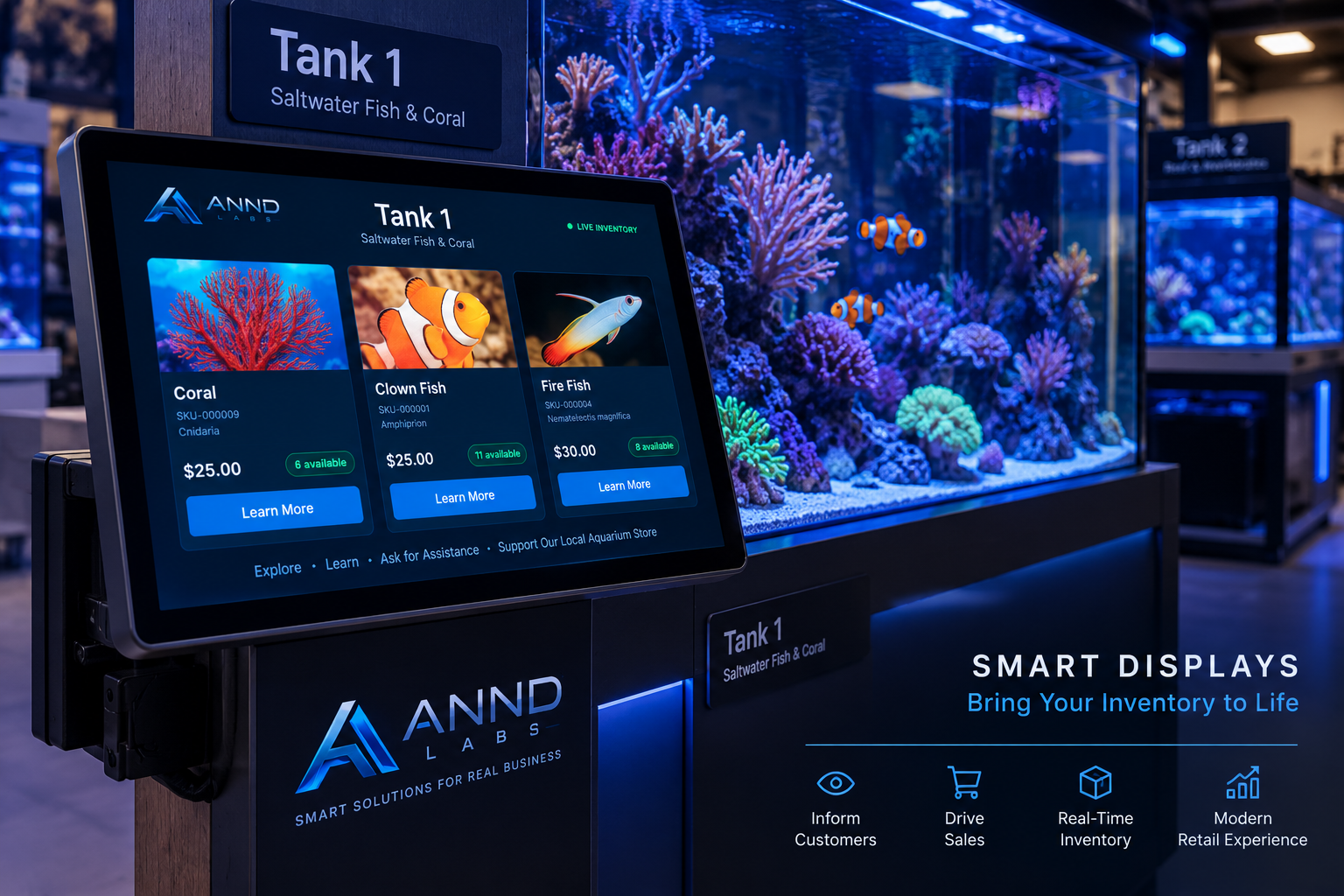
What this looks like beside the tank.
The Smart Display you just used is designed to live right beside the physical tank. Customers can browse livestock, pricing, availability and product details while standing in front of the animals they're interested in—all powered by the same inventory ANND POS uses behind the counter.
Reports & Audit Center
Review business activity, employee accountability and sales performance.
The transaction does not disappear after checkout.
Completed sales feed the reporting and audit side of ANND POS so an owner or manager can review what sold, when it sold, who handled the transaction and how the business is performing. Complete a demo sale at the Register and it will appear in the recent-sales activity here while the totals change with it.
Recent Sales
| Sale | Time | Employee | Total | Payment |
|---|
Customers & Rewards
Attach customers to sales and track loyalty activity.
Connect purchases to the people who make them.
Customer profiles and rewards give the store a way to recognize returning shoppers and build loyalty over time. The sample shopper, Alex Customer, is also shown directly on the Register so the clerk can see who is attached to the transaction and how many reward points they have before checkout. This page is the deeper customer-management side: contact information, loyalty balances and customer history can live here, while the Register only shows the information the employee needs during the sale.
What each ANND POS area does
This demo is intentionally simplified, but each section represents a real part of the ANND POS workflow. The important idea is that the sections are connected instead of being separate tools that have to be maintained individually.
Let's show you ANND POS live.
Tell us a little about your store and we'll walk through the parts of ANND POS that matter most to your operation.